
MicroStation Courses


Enjoy the Benefits of a PROCAD Virtual Training Classroom
Experience the benefits of instructor-led classroom training from wherever you are.
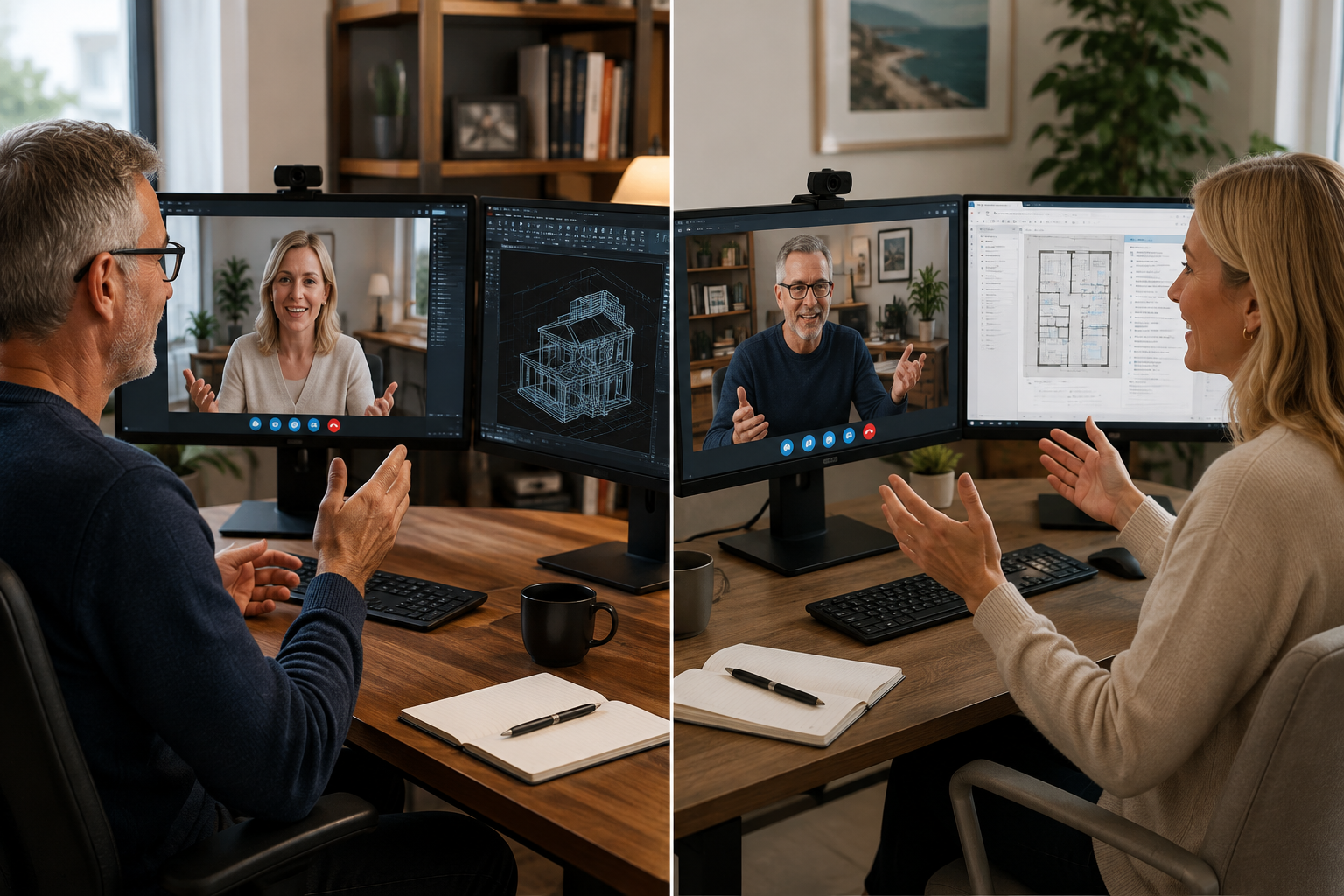
Our Virtual Training Classroom provides a live, interactive learning environment where students work directly with an experienced PROCAD trainer.
Students participate in demonstrations, practical exercises and discussions in real time, with the ability to ask questions, share their screen and receive individual assistance throughout the course.
Participants use their own computer with bi-directional screen sharing using Two Screens and software, while the trainer guides them through the course step by step.
It's not simply watching an online video—it's a live classroom experience, with a real instructor, real-time interaction and hands-on practical training.
The objective of the MicroStation Fundamentals Course is to enable students to create a basic 2D drawing in the MicroStation software. Even at this fundamental level, the MicroStation software is one of the most sophisticated computer applications that you are likely to encounter. Therefore learning to use it can be challenging. This course can be extended with the addition of the MIcroStation Intermediate Course
Module 1: Getting Started with MicroStation
• Starting the Software
• User Interface
• Working with Commands
• Cartesian Workspace
• Opening an Existing Drawing File
• Viewing Your Drawing
• Saving Your Work
Module 2: Basic Drawing & Editing Commands
• Drawing Lines
• Erasing Elements
• Drawing Lines with Polar Tracking
• Drawing Rectangles
• Drawing Circle
• Undo and Redo Action
Module 3: Projects - Creating a Simple Drawing
• Create a Simple Drawing
• Create Simple Shapes
Module 4: Drawing Precision in MicroStation Fields
• Using Running Element Snaps
• Using Element Snap Overrides
• Polar Tracking at Angles
• Element Snap Tracking
• Drawing with Snap and Grid
Module 5: Making Changes in Your Drawing
• Selecting Elements for Editing
• Moving Elements
• Copying Elements
• Rotating Elements
• Scaling Elements
• Mirroring Elements
• Editing with Grips
Module 6: Projects - Making Your Drawings More Precise
• Schematic Project: Electronics Diagram
• Architectural Project: Landscape
• Mechanical Projects (with Polar & Tracking)
Module 7: Organizing Your Drawing with Levels
• Creating New Drawings With Templates
• What are Levels?
• Level States
• Changing an Element’s Level
Module 8: Advanced Element Types
• Drawing Arcs
• Drawing Polylines
• Editing Polylines
• Drawing Polygons
• Drawing Ellipses
Module 9: Getting Information from Your Drawing
• Working with Element Properties
• Measuring Elements
Module 10: Projects - Drawing Organization & Information
• Architectural Project
• Mechanical Project
• Civil Project
Module 11: Advanced Editing Commands
• Trimming and Extending Elements
• Stretching Elements
• Creating Fillets and Chamfers
• Offsetting Elements
• Creating Arrays of Elements
Module 12: Inserting Cells
• What are Cells?
• Inserting Cells
• Working with Dynamic Cells
• Inserting Cells with DesignCenter
• Inserting Cells with Content Explorer
Module 13: Preparing Layout for Plotting
• Model Space vs PaperSpace
• Creting Viewports
• Scaling Viewports
• Plotting Page Setups
• Architectural Project 1 - Floor Plan
• Architectural Project 2 - Floor Plan
• Civil Project - Parking Lot
We speak your language - You'll find we're all open, approachable and can communicate at all levels. We'll cut through the "tech talk", breaking it down into easily understandable concepts. Whatever the situation, you'll know exactly what we're teaching and why.
PROCAD has an affinity for Training CAD and has done this for 33 years.